A POS app on your phone — the camera reads the barcode

The barcode scanner lives in the seller’s phone: carts, payment by cash, card or credit, 58 and 80 mm receipts and a cash count at day’s end. No need to buy a separate barcode scanner.

Try 7 days freeSign up right in the app
Try tapping it

The sale screen — open it yourself

This is not a picture. Tap the sections at the top and the icons at the bottom to move around inside the app itself.

  • Sale — the item drops into the basket, with the total below
  • Goods intake — new products are entered through this form
  • History — recent receipts with payment type and customer
  • The icons at the bottom lead to the app’s five sections
Tap the screen
9:41
Asosiy
Bugungi savdo
842 000 so‘m
Sof foyda
210 ming
Sotuv
37
Qarzga
120 ming
Qarzdorlar
1,2 mln
Qarzim
380 ming
Sof balans
820 ming
Eslatma
Postavshik
Hisobot
Xarajatlar
Ombor
AI yordamchi
Kassa
Coca-Cola 1.5L
qoldiq: 23 dona
14 000 so‘m
Non
qoldiq: 40 dona
4 000 so‘m
Choy Ahmad 100g
qoldiq: 12 dona
22 000 so‘m
Savat 1 · 3 xil
Jami40 000 so‘m
NaqdKartaQarzga
Sotuvni yakunlash
Mahsulot nomi
Coca-Cola 1.5L
Shtrix-kodixtiyoriy
4780000123456
Qancha keldi (dona)
24
Kirim narxi (1 dona)
11 000
Sotuv narxi (1 dona)
14 000
Kirimni saqlash
Coca-Cola 1.5L ×2, Non ×1
15.08 19:12 · Naqd
32 000 so‘m
Choy Ahmad 100g ×1
15.08 18:40 · Karta · Aziz aka
22 000 so‘m
Shakar 1 kg ×3
15.08 17:05 · Qarzga · Dilnoza opa
36 000 so‘m
Ombor
Coca-Cola 1.5L
14 000 so‘m
23 dona
Non
4 000 so‘m
40 dona
Choy Ahmad 100g
22 000 so‘m
12 dona
Guruch Lazer 1 kg
18 000 so‘m
31 dona
Paxta yog‘i 1 l
24 000 so‘m
17 dona
Makaron 400g
9 500 so‘m
54 dona
Shakar 1 kg
12 000 so‘m
3 dona
Guruch Lazer 1 kg
18 000 so‘m
4 dona
Sut 1 l
Srok: 2 kun qoldi
9 dona
Tvorog 250g
Srok: 5 kun qoldi
6 dona
AI yordamchi
Bugungi savdo va foyda qancha?
Telegramga yubor
Kim qarzdor va kim kechiktiryapti?
Nima tugayapti, nima buyurtma qilay?
Telegramga yubor
Savdoni hisoblayapman...
Kim qarzdor?Nima buyurtma qilay?Qaysi tovar yotib qolgan?
Savolingizni yozing...
Mijozlar
Aziz aka
+998 90 123 45 67
420 000 so‘m
Dilnoza opa
+998 93 555 12 34
85 000 so‘m
Bek aka
telefon kiritilmagan
150 000 so‘m
Nodira opa
+998 91 777 08 22
0 so‘m
Sardor aka
+998 94 210 33 15
260 000 so‘m
Malika opa
+998 99 604 77 41
45 000 so‘m
Qarz yozish
Bosing va gapiring
Masalan: “Karim akaga 120 ming so‘m, shanbagacha”
0so‘m
Mijoz ismi
Karim aka
Qarzdor telefoni
+998 90 123 45 67
Muddatixtiyoriy
kk.oo.yyyy
Izohixtiyoriy
Qarz yozish
Profil
Balans150 000 so‘m · 12 kun
Do‘kon ma’lumotlari
TilO‘zbekcha (lotin)
Karta raqami•••• 9012
Skaner ovoziKod o‘qilganda “bip” chiqadi.
Chek printeri80 mm
Yorliq printeri40×30 mm
Kechki hisobot22:00
Xodimlar (sotuvchilar)

Till screens — from the app itself

Sales, the scanner, shifts and returns look exactly like this on a phone.

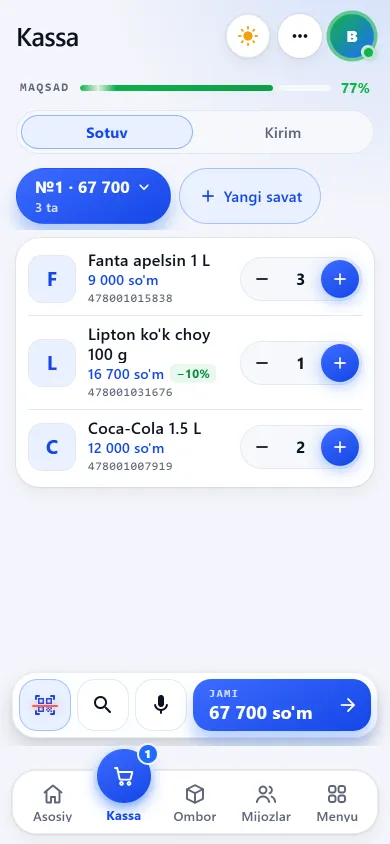
The till screen with a basket, a search field and a scanner buttonThe till screen with a basket, a search field and a scanner buttonNew design
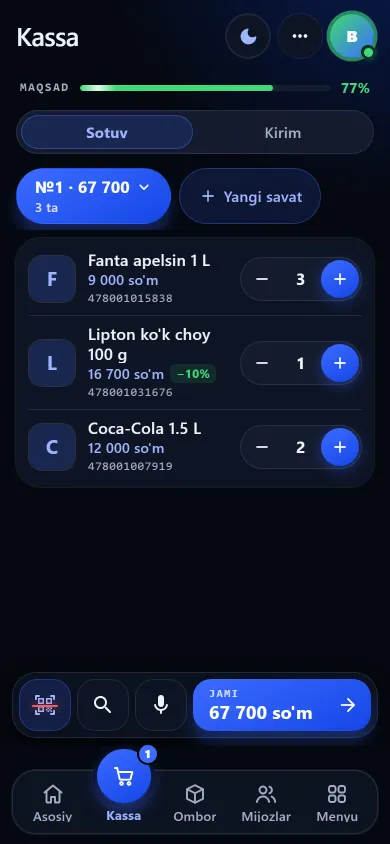
The till screen with a basket, a search field and a scanner buttonPrevious design
The tillSales, goods intake and receipt history, with the expected cash shown on top.
The scanner button and search field at the till, where the camera reads barcodesThe scanner button and search field at the till, where the camera reads barcodesNew design
The scanner button and search field at the till, where the camera reads barcodesPrevious design
ScannerThe phone camera reads the barcode — no separate scanner to buy.
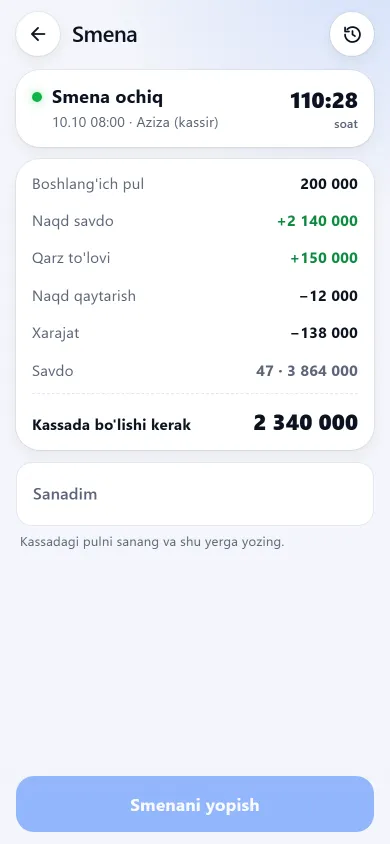
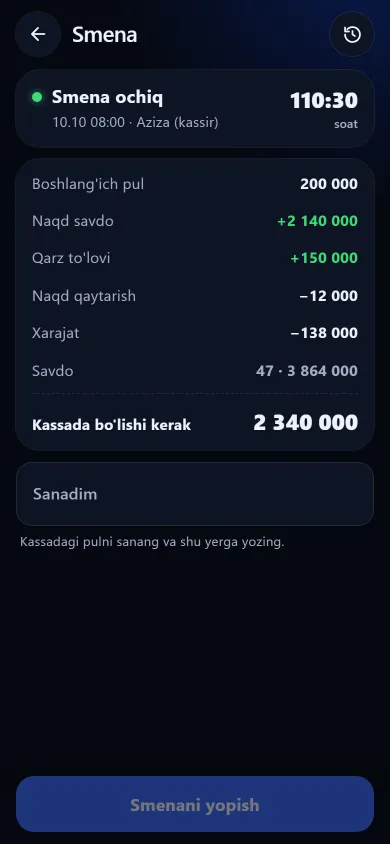
The shift screen showing the expected cash calculationThe shift screen showing the expected cash calculationNew design
The shift screen showing the expected cash calculationPrevious design
ShiftWhat should be in the till, broken down line by line.
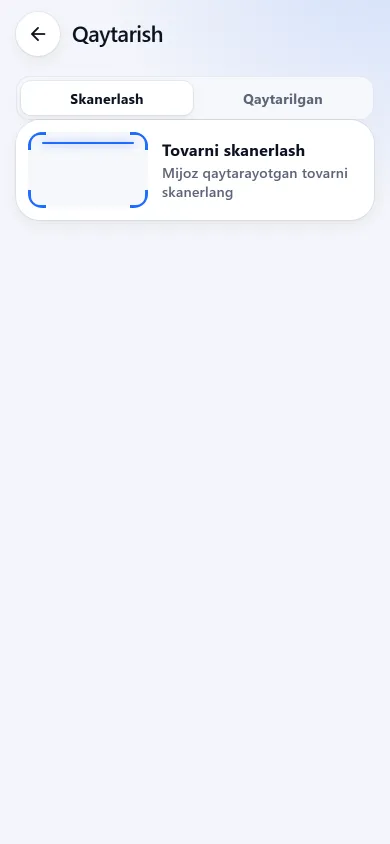
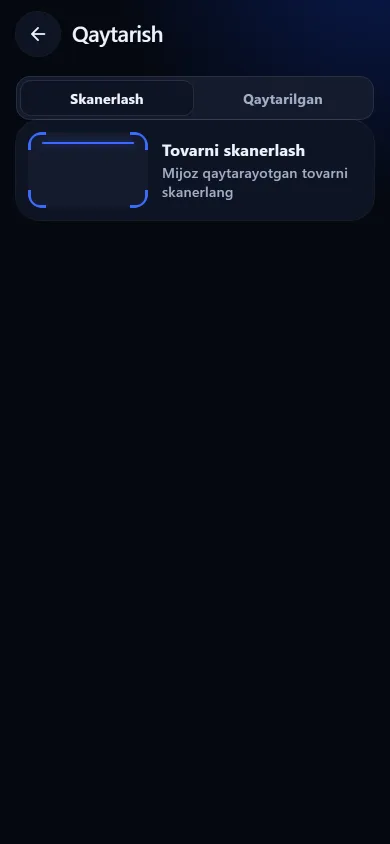
The returns screen with a scan button and the returning item’s cardThe returns screen with a scan button and the returning item’s cardNew design
The returns screen with a scan button and the returning item’s cardPrevious design
ReturnsScan the item and the app finds which sale it came from.

These screenshots come from a demo shop: the products, customers and amounts in them are invented. A real shop’s screen shows customer names and their debts, so we do not publish those. The screens themselves look exactly like this.

A barcode scanner inside the phone camera

Tap the scanner button and the camera opens, then stays open through the sale: hold up item after item and anything in your catalogue with stock drops into the cart by itself, while the bottom bar shows the cart name, how many different items it holds and the total. How it reads on different phones is on the phone scanner page.

What the scanner cannot read

The worst moment is finding out after you pay that your own codes are not read. So here are the limits up front.

Formats that are not read

ITF-14, Code-93, Codabar, Data Matrix and PDF417 are not read — the pharmacy marking code is on that list too. Such items get an in-store code and a printed label.

It can be slower on iPhone

Android and Chrome use the browser’s own detection engine — the fastest path. iPhone and Safari have none, so a library reads the code there.

Scale labels — grocery shops only

A label with the weight inside the code is read only in a grocery-type shop. You give the item a scale number (PLU) and enter it into the scale, which must print a 13-digit code starting with 22 for weight or 21 for price.

A USB scanner on a computer

A USB scanner such as a Honeywell connects as a keyboard: if it sends Enter or Tab after the code, the app tells it apart from typing — in sales, intake and returns. With the cursor in another field, the code’s first two characters can stay there.

Carts, payment types and selling on credit

When the queue moves you open a second cart, type the quantity by hand and record the money exactly as it was handed over.

01

Choose “Credit” as the payment

Credit selling is its own permission: without it an employee takes only cash and card. If the customer is blocked or over their limit, the sale is not recorded.

02

Type the phone number

A known customer’s name and outstanding debt appear at once; a new one is asked for a name only then. Without a number there is no credit sale.

03

The debt enters the ledger itself

In a split payment only the remainder becomes debt. A debt made at the till has no due date — write a dated one from the “Add debt” screen or the customer card.

Printing receipts: 58 and 80 mm

After a sale the app asks whether to print. The receipt carries the shop name, date, seller, items, total and payment type; a phone shop adds the IMEI and warranty period. Printer setup is in the receipt printer guide.

01

Set the roll width once

In Profile > Receipt printer you mark 58 or 80 mm. The setting belongs to the shop, not the device: a cashier’s phone takes that size the next time the app opens.

02

Check it with a test print

The test receipt and label print through the real path, so what you see on paper is what a sale will produce.

03

Printing goes via the browser dialog

Receipts and labels go out through the browser’s print dialog: pick the printer there and set 100% scale. There is no direct ESC/POS, Bluetooth or driver link.

Shifts, cash and staff permissions

At day’s end the software answers “how much should be in the drawer”, while you decide how far a seller’s hands reach. More on the staff oversight page.

Card, QR and transfers: how a payment is recorded in BuySale

BuySale does not take the money itself — it records how the money came in. The till has three payment types: cash, card and credit; there is no separate type for QR, terminal or transfer payments.

01

The terminal or QR app takes the money

A card, QR or transfer payment goes through your terminal or banking app — BuySale is not connected to them and does not send them the amount. Check on the terminal or in the banking app that the payment went through.

02

In BuySale you choose “Card”

You finish the sale with the “Card” payment type; there is no separate “QR” or “Transfer” type. If the customer paid part in cash, record a split payment: cash + card.

03

In the evening you compare the totals

The report shows cash, card and credit in separate columns, and the evening Telegram summary, when Telegram is connected, lists them separately too. Compare the “Card” total with what reached your terminal or banking app.

Questions about the till

What printer do I need for receipts?

A receipt printer with a 58 or 80 mm roll; you set the width once in Profile. The receipt goes out through the browser’s print dialog, where you pick the printer and set 100% scale — there is no ESC/POS, Bluetooth or driver link.

Is the receipt a fiscal one?

No. It has no fiscal mark, tax QR code or register number — it is the shop’s own sales slip. For a fiscal receipt your registered cash register still works separately — see do I need a cash register.

Do I have to install POS software on a computer?

No. BuySale opens in the browser (app.buysale.uz); on Android you install an APK, and on a computer you install it as an app from the browser — see how to install. You need neither an installer nor a touchscreen terminal. If you need fiscal receipts, the fiscal till stands alongside — see do I need a cash register.

Does it connect to a bank terminal, UZCARD/HUMO or QR payments (Click, Payme, Uzum)?

No. BuySale is not connected to bank terminals, UZCARD/HUMO processing or QR payment systems: it does not send the amount to the terminal and does not know when money arrives. The terminal or QR app takes the payment, and in BuySale you finish the sale with the “Card” payment type — the report keeps it separate from cash.

How do I record a sale paid by QR or by transfer to my card?

Choose the “Card” payment type: the till offers cash, card and credit, with no separate “QR” or “Transfer” type. First check in the terminal or banking app that the money has arrived, then finish the sale. If the customer paid part in cash, record a split payment of cash + card — as long as no discounted item is in the basket.

Does the till work without internet?

In the Android and Windows app, yes, for up to 7 days: sales are queued, stock goes down at once, and everything is sent to the server once the connection is back. In the web version in the browser the till needs internet.

What limits can I put on a seller?

Selling, credit selling, refunds and haggling at the till are four separate permissions granted per employee. Haggling (typing an agreed lower total) is in no ready-made set except “Manager”, and a discount on the product card depends on the price-change permission. Revoke a permission and the employee stops at their next tap — see staff permissions.

What if cash is short when the shift closes?

The app works out the expected cash and shows the difference against the counted amount at once; when there is one, a field opens for the reason. Closed shifts keep who closed them, how many sales and the difference.
Related pages

BuySale

Try it today and see the difference tomorrow.

7 days free, no payment card needed. Then from 6 630 UZS a day, depending on the shop type.

Start for free