Expenses: “profit” and the money left in your hand are not the same

Buy at 10,000 and sell at 14,000 and the app shows 4,000 of profit. But rent, electricity and your seller’s wages come out of that same money. Record your expenses and the app subtracts them, leaving the real figure on screen: net profit.

Try 7 days freeNo payment card needed

Eight ready categories, plus your own

Rent, utilities, wages, transport, taxes and fees, advertising, repairs and other — each with its own icon. For anything not on the list, tap “I’ll type it” and enter a name; it keeps that name afterwards.

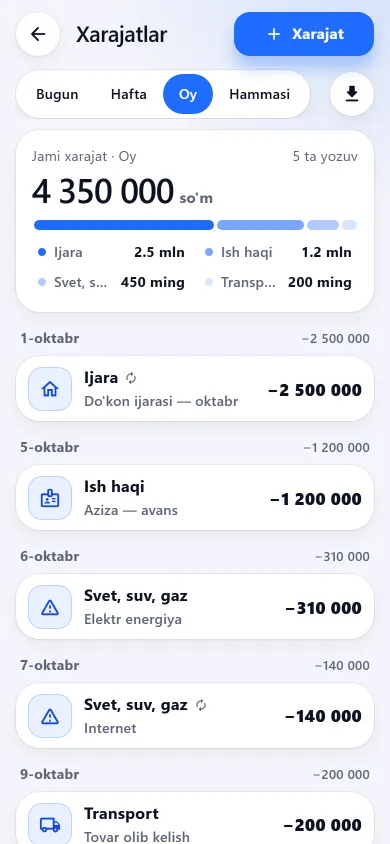
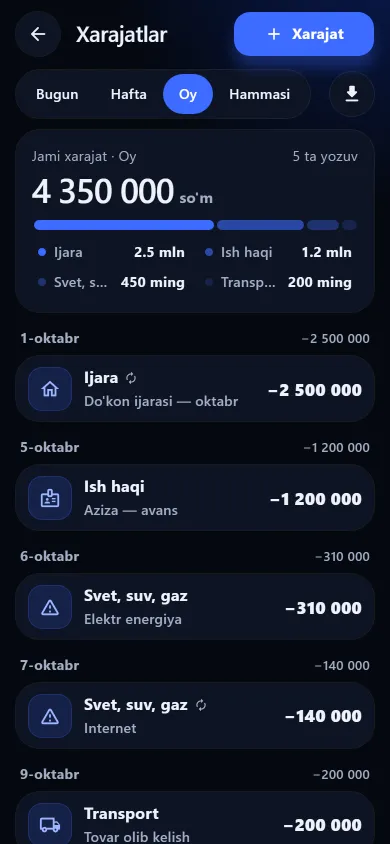
The expenses screen — from the app itself

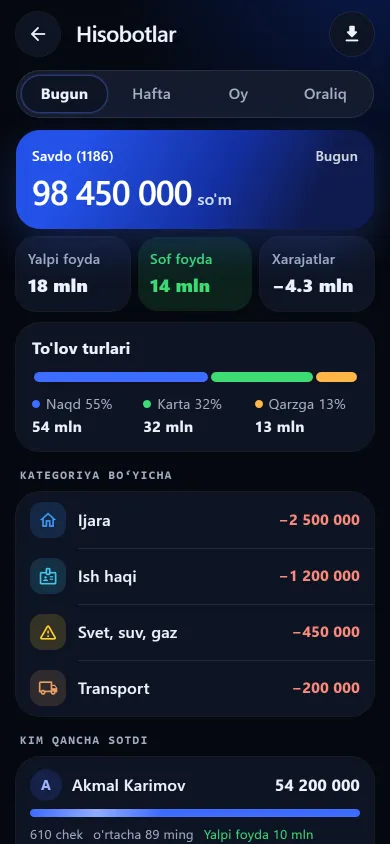
The split by category, net profit in the report and today’s picture on the home screen.

The expenses screen with amounts and percentages by categoryThe expenses screen with amounts and percentages by categoryNew design
The expenses screen with amounts and percentages by categoryPrevious design
ExpensesThe share and percentage per category, with a day-by-day list below.
The report screen showing sales, gross profit, expenses and net profitThe report screen showing sales, gross profit, expenses and net profitNew design
The report screen showing sales, gross profit, expenses and net profitPrevious design
ReportsSales, gross profit, expenses and net profit, then payment types and who sold what.
The BuySale home screen showing today’s takings, net profit and the week’s barsThe BuySale home screen showing today’s takings, net profit and the week’s barsNew design
The BuySale home screen showing today’s takings, net profit and the week’s barsPrevious design
Home screenToday’s takings, net profit, the week’s bars and the daily goal. Below: debtors, what you owe and the net balance.

These screenshots come from a demo shop: the products, customers and amounts in them are invented. A real shop’s screen shows customer names and their debts, so we do not publish those. The screens themselves look exactly like this.

How net profit is worked out

The report screen stacks three lines: gross profit (your markup), expenses and net profit. A negative net profit shows in red. Tapping the card or a category row opens the expenses section — the moment you think “profit looks thin” you can see where it went.

01

You record the expense

Type the amount (it groups itself as 120 000), pick a category and add a note or date if needed.

02

It comes off the profit

Net profit in the report updates at once; if there was an expense today the home screen switches to showing “Net profit” too.

03

At month’s end you see the picture

The split by category: how much on rent, how much on transport. You can download it as a file and keep it.

What this section does not do

We say it plainly up front, so there is no “but I thought it did that” later.

Frequently asked questions

My seller should not see the shop’s expenses — can that be set?

Yes — expenses are a separate permission, and the ready-made Cashier, Seller and Senior seller sets do not include it: the section is hidden and the request is refused server-side. One caveat: an employee with AI assistant access can ask it for totals by category — the AI tools are not yet filtered by this permission. If expenses must be fully closed off, do not grant AI access either.

The rent is the same every month — must I type it in each time?

Mark the entry “repeats monthly” and next month, while nothing is recorded in that category, a prompt appears at the top; the “Record for this month” button adds last month’s amount with today’s date in one tap. It does not record itself, but it will not be forgotten either.

Does an expense affect the cash in the drawer?

Yes, if a shift is open. The expense is attached to that shift and deducted from the cash expected in the drawer (opening float + cash sales + debt repayments − cash refunds − expenses). Note: the payment method is not stored, so an expense paid by card also counts as leaving the drawer — you will see a difference and can explain it in the note when closing the shift.

Where do I record a bonus paid to a seller?

Record it as an expense under wages so your net profit stays right. Staff KPIs work out the bonus amount, but do not post it to expenses by themselves.
Related pages

BuySale

Try it today and see the difference tomorrow.

7 days free, no payment card needed. Then from 6 630 UZS a day, depending on the shop type.

Start for free