Shop reports: sales, net profit and the day’s result

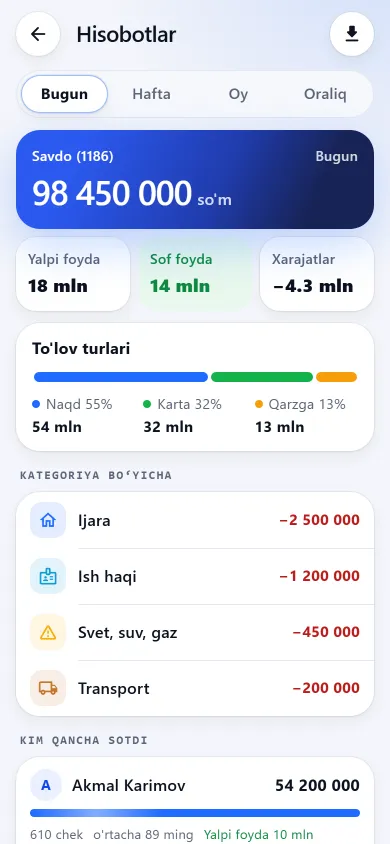
The daily report on one screen: revenue, receipt count, gross profit, expenses and net profit. Buttons switch the period — today, the last 7 days, the last 30 days or a date range you pick yourself. In the evening the day’s result arrives in Telegram by itself, with no need to open the app.

Try 7 days freeNo payment card needed

Report screens — from the app itself

Reports, expenses and the home screen look exactly like this on a phone.

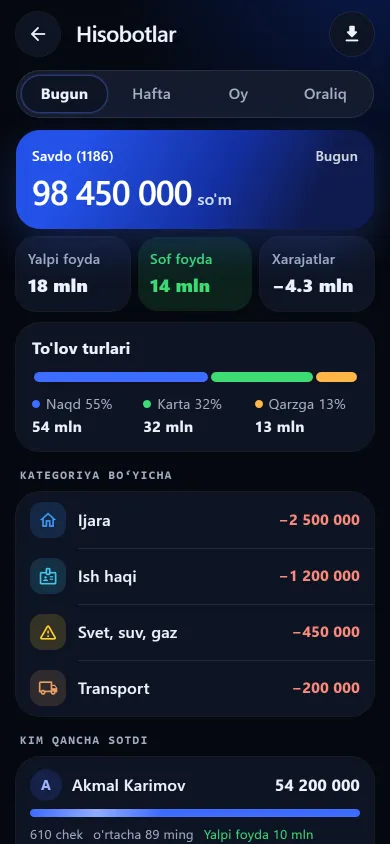
The report screen showing sales, gross profit, expenses and net profitThe report screen showing sales, gross profit, expenses and net profitNew design
The report screen showing sales, gross profit, expenses and net profitPrevious design
ReportsSales, gross profit, expenses and net profit, then payment types and who sold what.
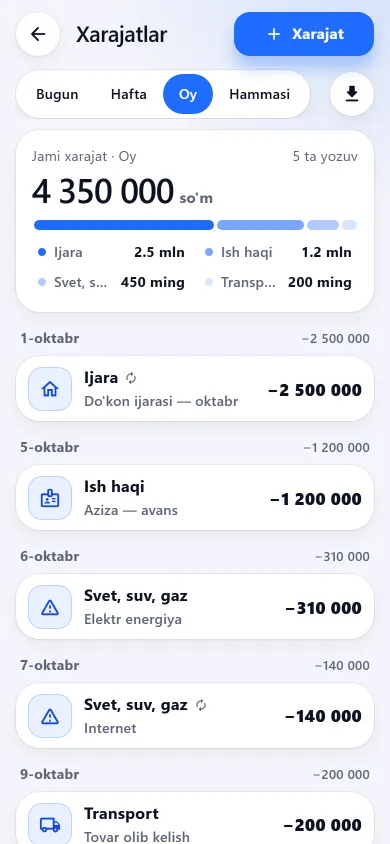
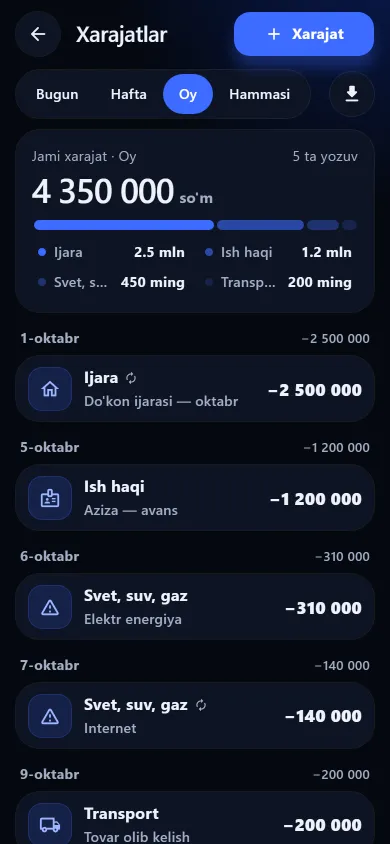
The expenses screen with amounts and percentages by categoryThe expenses screen with amounts and percentages by categoryNew design
The expenses screen with amounts and percentages by categoryPrevious design
ExpensesThe share and percentage per category, with a day-by-day list below.
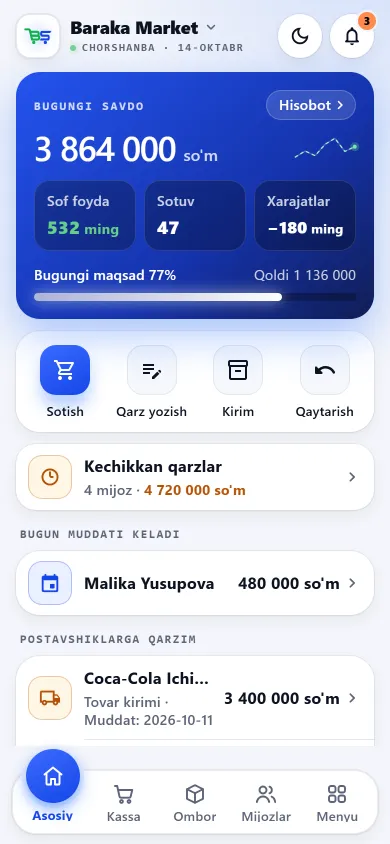
The BuySale home screen showing today’s takings, net profit and the week’s barsThe BuySale home screen showing today’s takings, net profit and the week’s barsNew design
The BuySale home screen showing today’s takings, net profit and the week’s barsPrevious design
Home screenToday’s takings, net profit, the week’s bars and the daily goal. Below: debtors, what you owe and the net balance.

These screenshots come from a demo shop: the products, customers and amounts in them are invented. A real shop’s screen shows customer names and their debts, so we do not publish those. The screens themselves look exactly like this.

Every night the day’s summary arrives in Telegram

By default the evening report is sent to Telegram at 22:00. You pick the hour yourself, from 18:00 to 23:00, or switch the report off entirely. The same setting previews the message and has a “send now” button so you can test it. The message goes through Telegram only — the owner must have opened the bot once — and no SMS is sent.

Periods: today, 7 days, 30 days or your own date range

To be straight about it: “week” and “month” are rolling periods, not a calendar week or a calendar month. For a calendar month or other exact dates there is a fourth button, the date range («Oraliq» in the Uzbek app, «Период» in Russian).

Today

Revenue, receipts, gross profit, expenses and net profit. The day is measured in Tashkent time and rolls over at 00:00, so late sales do not land on yesterday.

The last 7 days

Seven days counted back from today. Not a calendar week starting on Monday — the window moves with the current day.

The last 30 days

Thirty days back from today. Not “1–30 September”: press it on 15 September and half of August is included too.

Your own range

With the date range button you pick the start and end dates yourself — a calendar month, say, or “1–15 March”. The end day itself is included, and the per-seller totals follow the same dates.

How net profit is calculated

One thing to be clear about: each sale records the cost price of the batch it used at that moment, so changing a cost price later does not change the profit of past days. The only exception is an item sold before any cost price was entered: once you enter it, that sale is corrected too. That makes entering cost prices accurately at intake the thing that decides how exact your profit figure is. How to record rent, power and wages is on the expenses page. To work out one item’s markup and margin in advance, use the markup calculator.

01

Gross profit

The cost price is subtracted from the selling price of every item sold, and the results are added up.

02

Returns come out

A returned item is automatically deducted from both revenue and profit — no manual correction needed.

03

Expenses are deducted

After rent, utilities, wages and any other recorded expenses are taken off, what remains is net profit.

Who sold how much and where the money went

You can export the sales list and the expenses as a CSV — the file covers the period (or date range) selected on screen and can go to your accountant. It is comma-separated: open it in Google Sheets, or in Excel via “Data → From Text/CSV” with a comma as the delimiter. This is not a tax report — fiscal records stay on your online till.

By employee

For each salesperson you see revenue, receipt count, average receipt and profit, with their returns subtracted. The owner’s own sales sit on a separate line. Targets, bonuses and shift shortages are in staff KPIs.

Expense book

Expenses are recorded with a date and a note, using 8 ready categories or your own. Percentages show which category weighs most. If a monthly rent or wage has not been entered yet, a reminder appears and adds it in one tap.

Payment type and top items

Cash, card and credit each get their own column; with a split payment (half cash, half card) each part lands in its own. For the chosen period you get the 10 best-selling items and how much money each brought in.

Shifts and the cash-count difference

Shifts are optional — without one, sales, credit and expenses are still recorded, they simply are not tied to a shift. Only one shift can be open at a time in a shop, and there is no separate till accounting for a second register. Closing a shift is not sent to Telegram — you see the result in the list inside the app. And honestly: an expense has no “cash or card” field, so an expense paid by card will show up as a difference when the shift closes. Where to start when a gap appears is on the staff oversight page.

Questions about reports

The evening report is not arriving — what should I do?

The report goes through Telegram only and no SMS is sent, so the owner must have opened the bot once. Then check in the settings that the report is on and which hour it uses (18:00 to 23:00, 22:00 by default) — the same screen has a “send now” button to test it straight away. Only one message is sent per day.

Is the “monthly” report not for the current month?

No — it is the last 30 days, not a calendar month. The same goes for “week”, which is the last 7 days. Press “month” on 15 September, for example, and half of August is included. If you need exactly a calendar month or other set dates (say 1–15 March), use the date range («Oraliq») and pick the first and last day.

Can I trust the profit figure?

Profit is the selling price minus the cost price, returns are removed automatically, and expenses reduce net profit. Each sale takes its cost price from the batch it used at that moment and stores it, so changing a cost later does not change the profit of past days. The one exception: an item sold with no cost price entered (and older sales made before 19 September 2026) uses the current cost price, so entering or changing it later recalculates those sales.

Will my employee see profit and cost prices?

Only an employee with the “reports” permission sees the report. Without the “see cost price” permission, cost and profit are never sent to them at all — not on screen and not in the exported file. One caveat: an employee with the reports permission does see expense totals and categories on the report screen. The full permission list is in the staff permissions guide, and the usual causes of shortfalls in our article on staff theft.

Can I see who recorded what?

Every sale, credit entry and expense stores who recorded it, and the employees section keeps a list of the last 30 logins. Even if you delete a departed employee, their sales stay in place. There is, however, no general history screen for “who changed a price or deleted an item”; the expense list does not show who entered each expense, and the customer card does not show who wrote a debt.

Do reports work without internet?

In the Android and Windows apps a report opens offline too, but as it was last loaded; it refreshes once the connection is back. The web version in the browser needs internet. The data lives on the server, so losing your phone does not lose your reports.
Related pages

BuySale

Try it today and see the difference tomorrow.

7 days free, no payment card needed. Then from 6 630 UZS a day, depending on the shop type.

Start for free