Supplier debts — the “who I owe” ledger

A shopkeeper usually keeps two sets of debts: customers owe them, and they owe suppliers. The second one is often written down nowhere, and later comes the argument “but I already paid you”. This section keeps that side of the book.

Try 7 days freeNo payment card needed

A debt takes a minute to record

When the goods arrive on credit your hands are full. So the form has just four fields, two of them optional: supplier name, amount, a note about the goods, and a due date. You do not have to add the supplier first — type the name and the app finds them or creates a new one.

The supplier screen — from the app itself

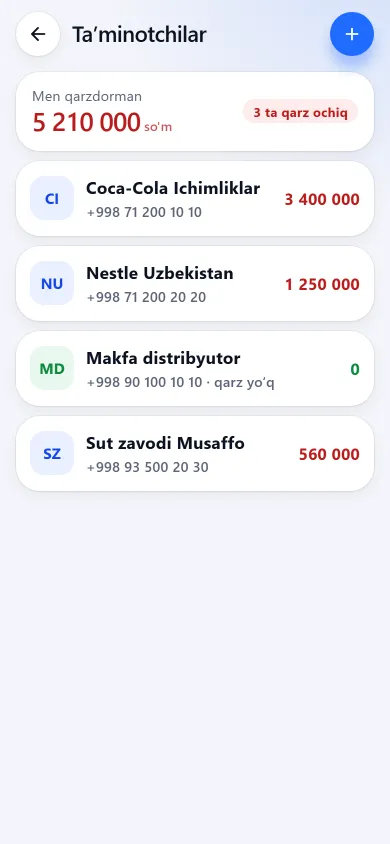
The total, the supplier list and the “I owe” line on the home screen look like this on a phone.

The supplier list with the amounts owed to eachThe supplier list with the amounts owed to eachNew design
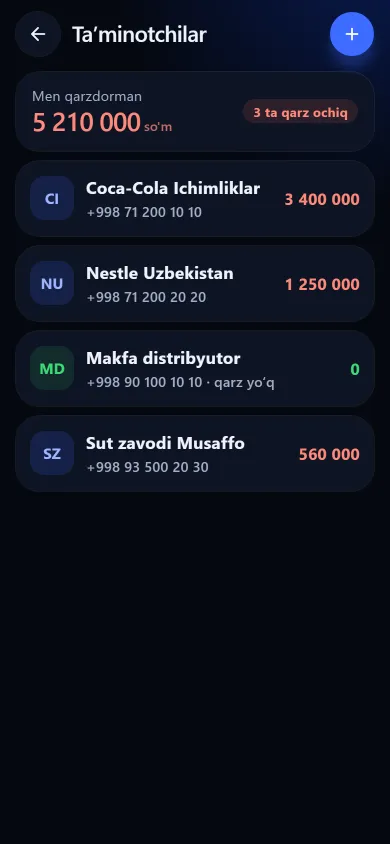
The supplier list with the amounts owed to eachPrevious design
SuppliersWho you owe and how much, largest first, with the total on top.
The order screen with a low-stock list and quantity buttonsThe order screen with a low-stock list and quantity buttonsNew design
The order screen with a low-stock list and quantity buttonsPrevious design
Purchase orderLow-stock items with a suggested quantity for each.
The BuySale home screen showing today’s takings, net profit and the week’s barsThe BuySale home screen showing today’s takings, net profit and the week’s barsNew design
The BuySale home screen showing today’s takings, net profit and the week’s barsPrevious design
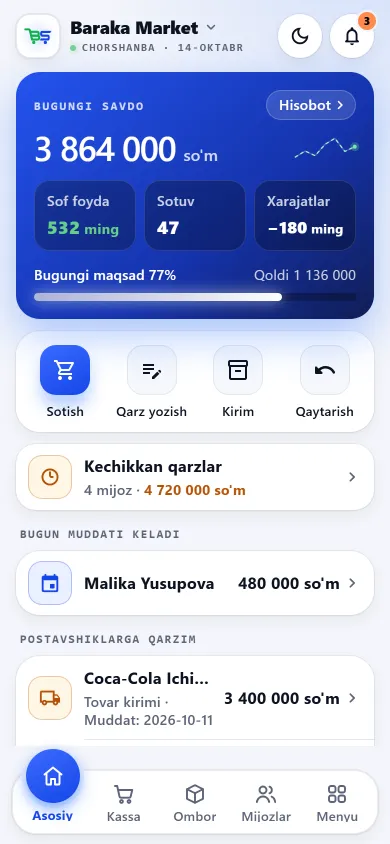
Home screenToday’s takings, net profit, the week’s bars and the daily goal. Below: debtors, what you owe and the net balance.

These screenshots come from a demo shop: the products, customers and amounts in them are invented. A real shop’s screen shows customer names and their debts, so we do not publish those. The screens themselves look exactly like this.

On the home screen: what you are owed and what you owe

Three figures sit side by side: what customers owe you (the credit book), what you owe suppliers and the difference. A negative difference shows in red — the shop owes more than it holds. Below are the five debts closest to their due date, with name, note and amount.

01

You take goods on credit

Tap “Record a debt (goods received)” and enter the name and amount. Add a due date and overdue status marks itself.

02

You pay in instalments

Tap the debt and enter an amount — the remainder drops by itself. When it reaches zero the record closes.

03

The reckoning stays in view

Each supplier has their own history: which debts are paid, which are overdue and how much has been paid in.

What this section does not do

We do not claim what is not there — better you know now than after you have paid.

Frequently asked questions

Do I have to add the supplier to a list first?

No. You type the name when recording the debt — the app looks for a supplier with that name in your shop (capitalisation does not matter), attaches the debt if found and creates a new supplier if not. There is no two-step “add supplier, then record debt”.

Can the order be sent straight to the supplier?

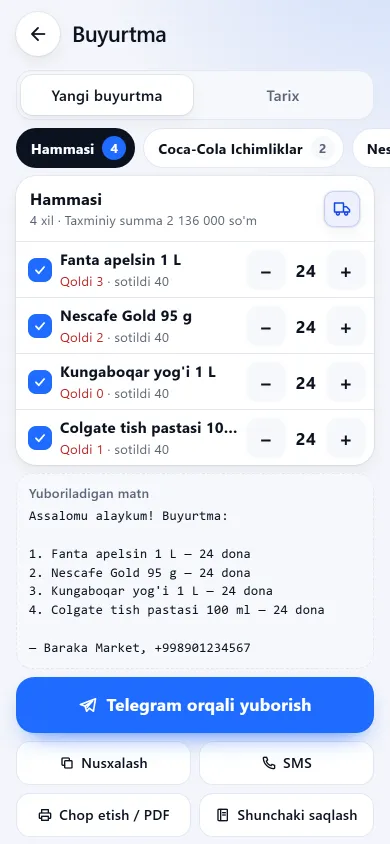
Not yet. The app has no field for a supplier’s phone number, and without one neither Telegram nor SMS can go out. The Orders section prepares the text: you copy and send it yourself, or print an A4 sheet to hand over with the goods. If a phone field is added we will say so on this page.

Can I hide this section from a seller?

Yes. The supplier ledger is a separate permission: without it the section is hidden from the menu and the server refuses the requests. The ready-made “Cashier” set does not include it. To be straight with you: the short list on the home screen does not yet check that permission, so an employee can see five supplier names and amounts there. We are fixing that.

What if I record a debt by mistake?

For now a recorded debt can be neither deleted nor edited — not by design, it simply has not been built yet. So check the amount before you save it. Payments, on the other hand, can be partial, and the system will not accept more than the remaining balance.
Related pages

BuySale

Try it today and see the difference tomorrow.

7 days free, no payment card needed. Then from 6 630 UZS a day, depending on the shop type.

Start for free