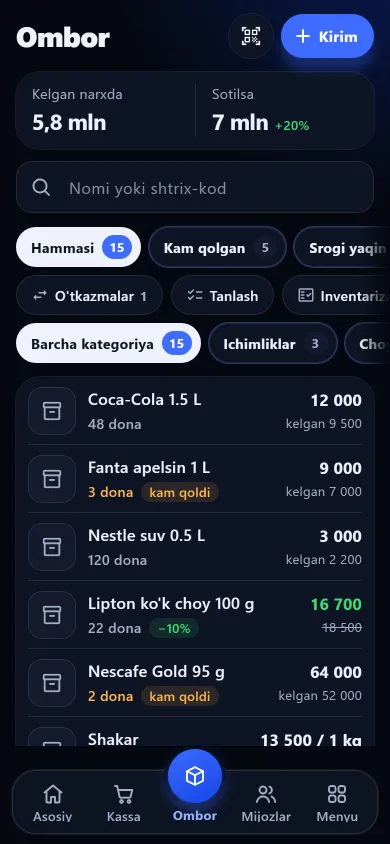
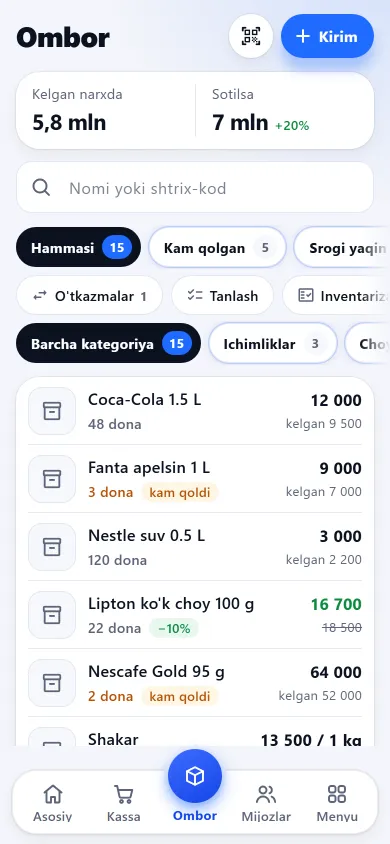
Inventory on your phone: record an intake and stock changes at once, get warned when an item runs low or its expiry comes close, and add a new product by photographing its label.
Tap the three sections at the top: everything, running low and nearing expiry each show separately. The icons below lead to the app’s other sections.
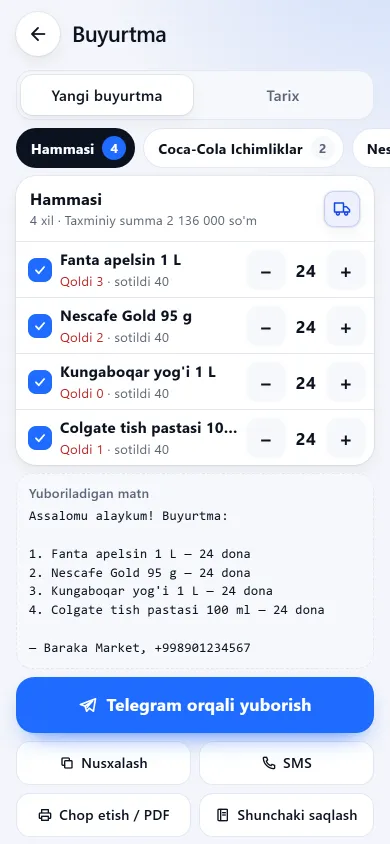
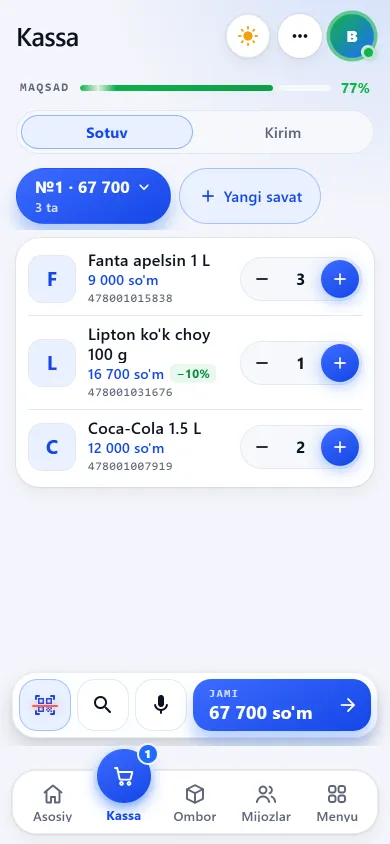
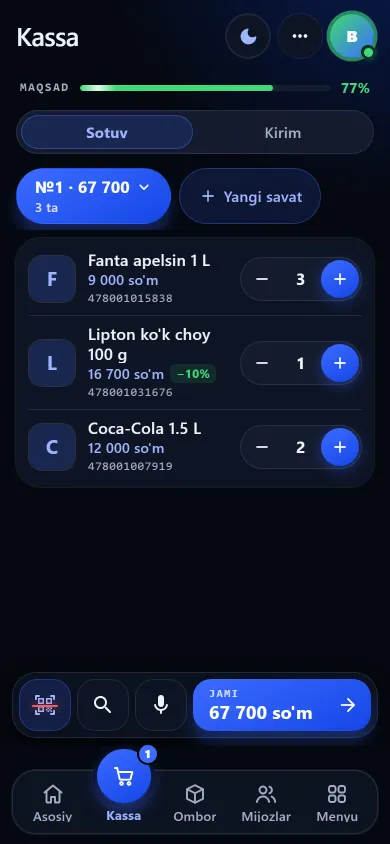
The stock list, the order suggestion and goods intake at the till.
New design
Previous design
New design
Previous design
New design
Previous designThese screenshots come from a demo shop: the products, customers and amounts in them are invented. A real shop’s screen shows customer names and their debts, so we do not publish those. The screens themselves look exactly like this.
Your products sit in a single list. Type a name into the search box or scan the label — the product is found at once, and tapping it opens its card.
Typing the name is the slowest part of adding a product. On the intake screen there is a camera button next to the name — photograph the label.
It sits next to the name field and is open to anyone with the intake permission.
The photo is shrunk on the phone and sent over the internet to the AI, so the answer comes back quickly.
The name, plus the barcode and selling price if visible, expiry or size depending on your shop type, karat, weight and stone in jewellery, IMEI in a phone shop.
Only empty fields are filled — apart from karat in a jewellery shop. If the label did not read well nothing is guessed — the field stays empty.
Incoming goods are recorded with a name, quantity, cost and selling price, and the stock goes up at once. The camera reads the label — in the stock list, at intake and during a stocktake. More on codes and labels in the barcode and label guide. Step by step — the goods-in guide.
You can enter the price as “I paid this much in total” — the unit price is worked out and your markup is shown.
Find the item in the central catalogue by section or name, or scan its factory barcode and the name and section fill in — picking from the catalogue adds the unit and code too (more than 1,700 verified products as of 3 October 2026). The catalogue needs the intake permission and is not used in jewellery shops.
Send a photo of the invoice to the assistant screen in the app and it reads the rows into a list — up to 40 rows at a time. The list does not enter stock by itself: correct each row and press Confirm.
A box code, a pack code, an old and a new code all attach to one card — the product is found by any of them. A code already taken is refused.
A product with no factory code gets a 13-digit code in one press. It starts with “20”, so it never clashes with a factory code.
An ordinary shop prints a linear EAN-13; a jewellery tag prints a QR code. 1, 4, 8, 12 or 24 copies per sheet; on an ordinary label you choose whether the price is printed, and a jewellery tag never carries a price. Printing goes through the browser print dialog — A4 sheet or roll printer.
If the same product arrives twice, each delivery is recorded as its own batch, with its own date and expiry.
You scan the items on the shelf one after another — the scanner does not close after each one, and what you have checked is stored on the server. Preparing and working through the differences is in the stocktaking guide.
Hold the labels up one by one; the count runs itself.
Leave the screen or sign in from another phone and you continue where you stopped.
At the end you get a list of the products where the count differs, and the stock is corrected from it.
Export the stock as a file, hide cost prices from staff, and turn the items running low into a ready order. Moving over from Excel or paper? See how to bring your list across.
It needs the internet and a connected AI — if there is none, the button says so. If the label did not read well, nothing is guessed. There is no daily limit, but check the fields before saving — especially karat in a jewellery shop, as it overwrites the one you picked.
No. The order comes out as ready text — you copy or print it and send it yourself. Marking it received does not raise the stock either: the goods are still recorded through the intake screen.
Seeing cost prices is a separate permission. Without it an employee sees the cost price neither on screen, nor in Excel, nor in the order list. They can correct a name, but changing a price needs another permission.
There is no separate write-off button yet — you correct the stock through a stocktake. A product that has ever been sold cannot be deleted, as that would break past sales and reports: you set its stock to zero instead.
No, it is left out on purpose. The file has the name, category, unit, stock, selling price and value, expiry and supplier, plus karat, weight, size or IMEI by shop type. The cost-price column appears only with permission to see cost prices.
In Stock: Select → goods and quantities → Continue → which branch → Send. The goods leave your stock and stay in transit until the receiving branch counts and confirms them. More on the stock transfers page.
How to do a stocktake in your shop: preparing, scanning item by item, reviewing differences and correcting stock — a practical step-by-step guide.
Learn more →The app builds the low-stock list itself and suggests how much to order from the last 30 days of sales. Copy the list or print it as an A4 sheet.
Learn more →Track what you owe for goods taken on credit: the debt per supplier, due dates, partial payments and a running “I owe” total on the home screen.
Learn more →Which barcode formats a phone camera reads, how to attach a code to a product, generate an EAN-13 for unlabelled goods and print labels on A4 or a roll.
Learn more →Goods-in on your phone: scan the factory barcode and catalogue items fill in their name and section. Label and delivery-note photos, expiry and batches.
Learn more →
7 days free, no payment card needed. Then from 6 630 UZS a day, depending on the shop type.
Start for freeBuySale assistant
Answers from what is published on this site
AI can make mistakes — check anything important via Telegram.
Writing an answer