Which codes a phone camera reads, what to do when a small tag will not scan, how to create a code for goods with no factory barcode, and how to print labels on an A4 sheet or a roll printer.
Tapping the scanner button at the till opens the phone camera and reads the code. Most goods arrive with an EAN-13 — the thirteen-digit code on the packaging. Beyond that, the app recognises several more formats:
Formats outside that list are not read: ITF-14, Code-93, Codabar, Data Matrix and PDF417. ITF was left out on purpose — it can read only part of a code and return a wrong short number, putting a different product in the basket. For the same reason the Data Matrix (track-and-trace) code on a medicine box is not scanned: in a pharmacy, goods are tracked by the ordinary barcode on the box or by the shop’s own code.
The images below are not taken from the internet or drawn by hand. They are produced by the very module the app uses to print labels and tags, so a code printed in your shop looks exactly like this. Point your phone scanner at this screen and check for yourself.
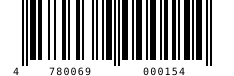
The most common code on factory packaging: thirteen digits. The last one is a check digit the app verifies on every read, so a misread code never reaches the basket. A 478 prefix means a manufacturer registered in Uzbekistan.
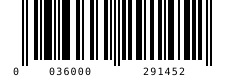
Common on imported goods — twelve digits. It is really an EAN-13: add a leading zero and you get exactly this image. That is why the scanner reads both formats the same way, with nothing to configure.
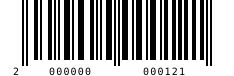
For goods with no factory code — a dress from a seamstress, a gold bar, something bought at the bazaar — the app creates a code itself: one button during intake. Such codes start with 20, a range reserved for in-store codes that can never collide with a manufacturer’s.
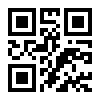
Used on jewellery tags and wherever space is tight. A QR holds a longer number and reads from any angle — even if the tag has twisted round. On a small tag it is more reliable than a linear barcode.
Code-128 and Code-39 appear on supplier and warehouse tags. The scanner reads them too, but there is no picture here: the program has no module that draws them, and an invented image would defeat the point of this page. The four codes above are exactly what comes out of your printer.
Many phones have several rear cameras, and not all focus well up close. A button inside the scanner switches between them, and your choice is remembered on that phone.
The moment a code is read you get a short beep, the phone vibrates and the screen flashes — you know without looking. If the product is not in your database the sound is lower and comes twice. To keep a wrong number out of the basket the app checks the code’s check digit and requires several identical reads in a row, which is why a code can feel like it reads a beat late.
On Android the browser’s own engine does the reading — the fastest route. The iPhone has no such engine, so a library inside the app reads instead and can be slower.
The most common cause is a stale camera or zoom choice. If the scanner sits open for several seconds reading nothing, and that happens twice in a row, the choice saved on that phone clears itself and the scanner starts fresh next time. While the camera is open there is a “Reset scanner” button at the bottom of the screen, showing which camera is running and how many frames have been checked.
That does not fix everything — a dirty lens, a camera permission never granted, or a worn-out label will still not read. Then you type the code by hand, in the field inside the scanner or the search bar at the till. It takes at least six digits to count as a code.
A shop on a computer can also use a USB scanner such as a Honeywell: it connects as a keyboard and must send Enter or Tab after the code. The code then lands in the right place on the sale, intake and return screens. If the cursor sits in another field the first two characters can end up there, so during intake it is better to scan while outside the price or quantity box.
If a scanned code is not found the scanner closes, but the code is remembered and a product list opens: tap the right product and the code is attached to it, so next time it is found instantly. This is the quickest way to teach your shop its codes. If the code already belongs to another product, the app says so instead of moving it silently.
One product can arrive with a case code, a pack code, or both an old and a new code. You attach them all to a single product card: whichever is scanned, the same product is found and stock comes off one place.
Home-made goods, something bought at the market, a piece of jewellery — none come with a factory code. For these the app creates its own EAN-13 in one tap: the code starts with “20” and has thirteen digits — “20”, a shop number, an item number and a check digit. Codes beginning with “20” are never issued to manufacturers, so yours cannot clash with a real factory code. As soon as it is created you print a label for it.
In jewellery and phone shops every item is its own card, so if the number on the tag is taken, the new item gets the shop’s internal code. One more thing: scan a product with a factory code at goods-in and, if it is in the central catalogue, its name and section fill in (more than 1,700 verified products as of 3 October 2026). If it is not there, you type the name yourself.
Need a code or two outside the app — say, for a label design? The free barcode generator makes an EAN-13 starting with 20 and lets you download it as SVG or PNG.
Labels come out in two ways. Which suits you depends on your printer — both print straight from the app, with no extra software.
An ordinary printer fits several labels onto one sheet. You will have to cut them out, but you need not buy a separate printer.
On a roll of self-adhesive labels each one prints as its own page — no cutting and no glue.
The black bars are drawn only for a thirteen-digit EAN-13 — including the shop’s own code starting with “20”. For a code of any other length the label carries the digits themselves rather than bars, and the scanner cannot read it: the code has to be typed by hand.
In a jewellery shop the tag is narrow and long, carrying rows for karat, size, weight and stone, plus a QR code. A linear barcode does not fit a tag that narrow, whereas a QR can carry even a long number. The app’s scanner reads QR codes, so an item is found by its tag at the till and during a stocktake.
Receipt and label sizes are saved to the shop, not the device. Set them once and every other phone and computer in the shop — including a cashier’s, who cannot open the settings — picks up the same sizes next time the app is opened. More in the receipt and label printer guide.
The app’s “Profile” section has two rows, “Receipt printer” and “Label printer”, visible to the owner and to an employee granted the settings permission.
Choose the receipt roll width (58 or 80 mm) and the label size, from the presets or by typing your own.
One tap prints a test receipt or label. The test goes through the real print path, so what you see on paper is what you get in a sale.
Receipts and labels come out through the browser’s print dialog: pick the printer there and set the scale to 100%. The app does not connect to a printer directly, by Bluetooth or through a driver.
No — the phone camera reads the code. A shop on a computer can also use a USB scanner such as a Honeywell: it connects as a keyboard and must send Enter or Tab after the code. The app does not connect directly to a Bluetooth scanner or printer.
Set the zoom to 2× or 3×, turn on the torch and use the button inside the scanner to switch to another rear camera — not every phone camera focuses well up close. If that fails, tap “Reset scanner” or type the code by hand: six digits are enough.
No. The scanner closes, but the code is remembered and a product list opens: tap the right product and the code is attached, so next time it is found at once. If the code belongs to another product, the app tells you.
No. A shop’s own code always starts with “20”, and such codes are never issued to manufacturers. The rest holds a shop number and an item number, with a check digit at the end.
No. The scanner reads EAN-13, EAN-8, UPC-A, UPC-E, Code-128, Code-39 and QR; Data Matrix (track-and-trace), ITF-14, Code-93, Codabar and PDF417 are not. If a case carries an ITF code, attach the ordinary pack code of the goods inside, or generate the shop’s own code.
In a grocery-type shop, yes. Each item sold by weight gets a scale number (PLU) in the app, and you enter that number into your scale; the scale must print labels in the in-store format — a thirteen-digit code starting with 22 for weight and 21 for price. In other shop types this section is not shown.
Prepared by: the BuySale team · Spotted a mistake? Tell us on Telegram
BuySale reads EAN-13, EAN-8, UPC, Code-128, Code-39 and QR with your phone camera: zoom, torch, continuous scanning and manual code entry as well.
Learn more →How to set the receipt printer to 58 or 80 mm, pick a label size such as 40×30, run a test print and fix the usual printing problems in BuySale.
Learn more →A POS app on your phone: camera barcode scanning, cash, card and credit sales, 58/80 mm receipts and shift cash counts. Not a fiscal till. 7 days free.
Learn more →Guides for shop owners: getting started, barcodes, credit, stocktaking, printers, staff — plus articles on tills, equipment and choosing software.
Learn more →Make a free in-store EAN-13 barcode starting with 20 for items without one and print labels on A4 or a roll. Supplying retail chains needs a GS1 code.
Learn more →
7 days free, no payment card needed. Then from 6 630 UZS a day, depending on the shop type.
Start for freeBuySale assistant
Answers from what is published on this site
AI can make mistakes — check anything important via Telegram.
Writing an answer